Setup guide
Set up with Claude.
About five minutes. You need your phone, and a computer once to run claude setup-token.
Steps
Three steps.
- 1Plug it in
Join the
codeMeter-XXXXXXWi-Fi from your phone. The setup page opens (or visithttp://192.168.4.1). - 2Get your token
On a computer with the Claude CLI, run
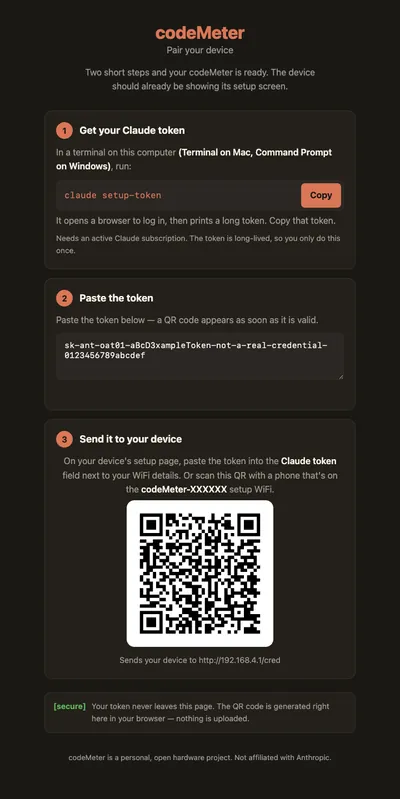
claude setup-token. It opens a browser to sign in, then prints a long token. - 3Paste and save
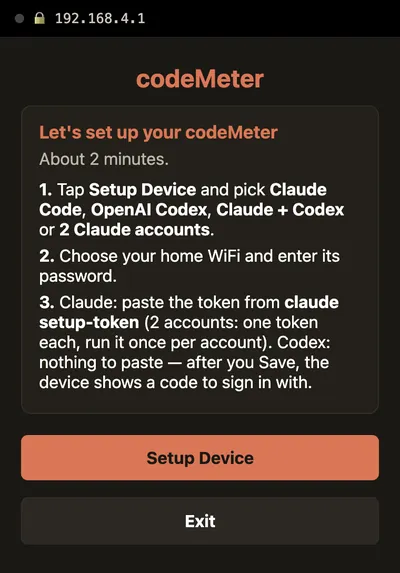
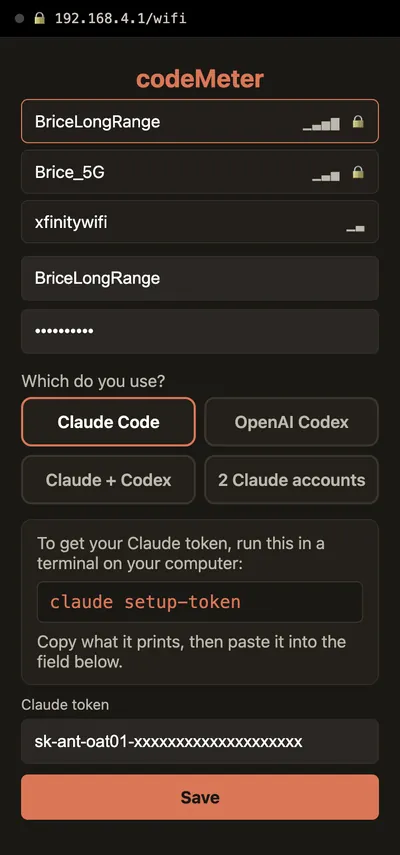
Tap Setup Device, pick Claude Code, paste the token (or scan the QR from the pairing page), choose your home Wi-Fi and Save.
The token
What claude setup-token does.
It is one command in Anthropic's Claude CLI (a free download). It signs you in through your browser and prints a long-lived token. codeMeter uses that token to read your usage. You do it once per Claude account.
The pairing page at encinitas3d.com/codemeter turns the token into a QR code in your browser, so you can scan it from the device's setup page instead of pasting. Nothing is uploaded.
On your phone
The pages you will see.
In use
Glance, don't check.
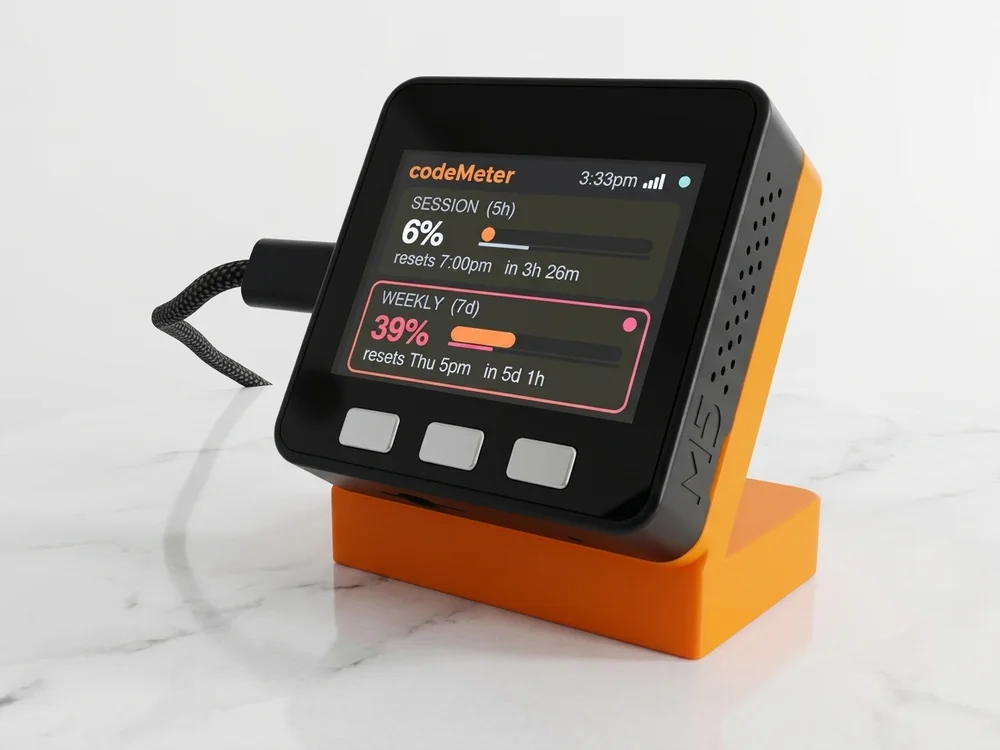
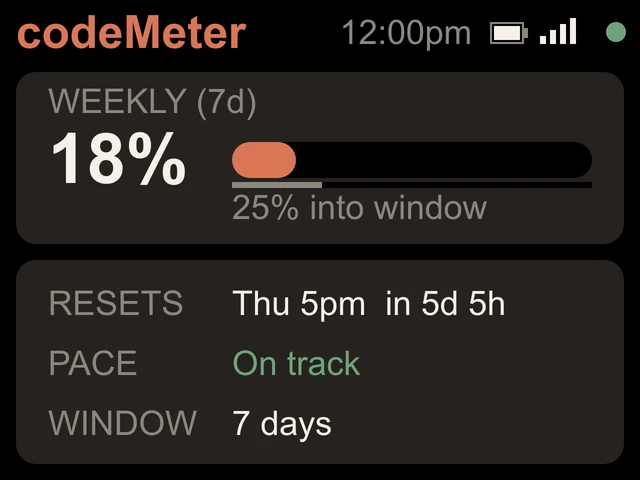
It sits beside the keyboard, so your limits are a look away while you work.
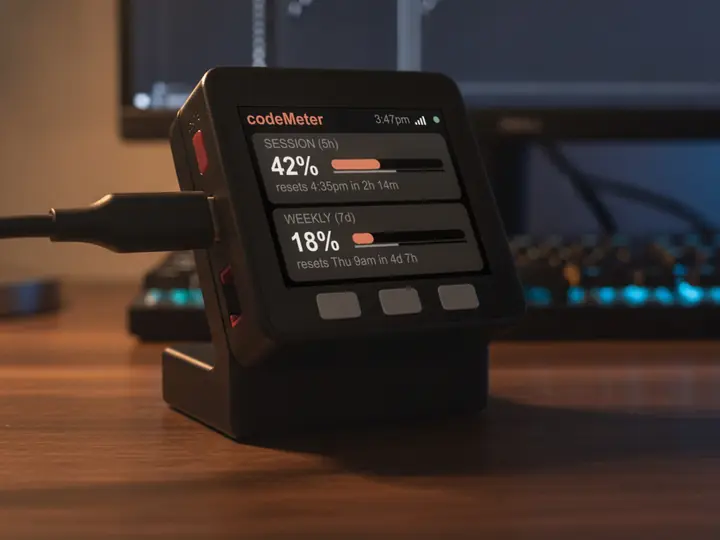
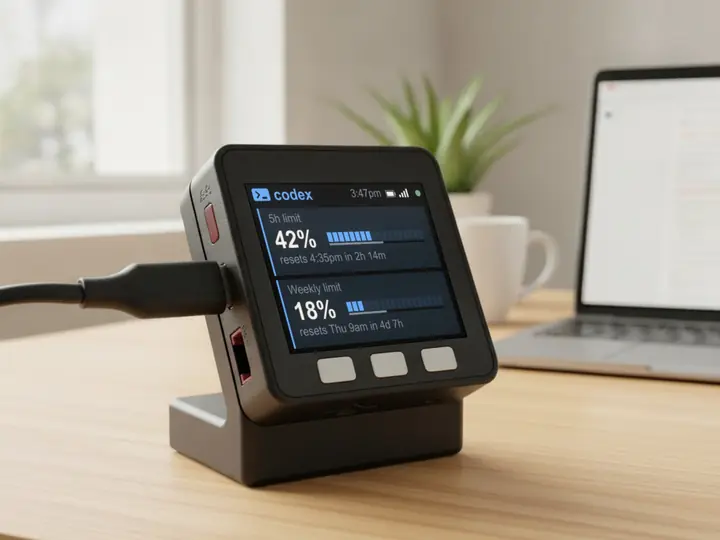
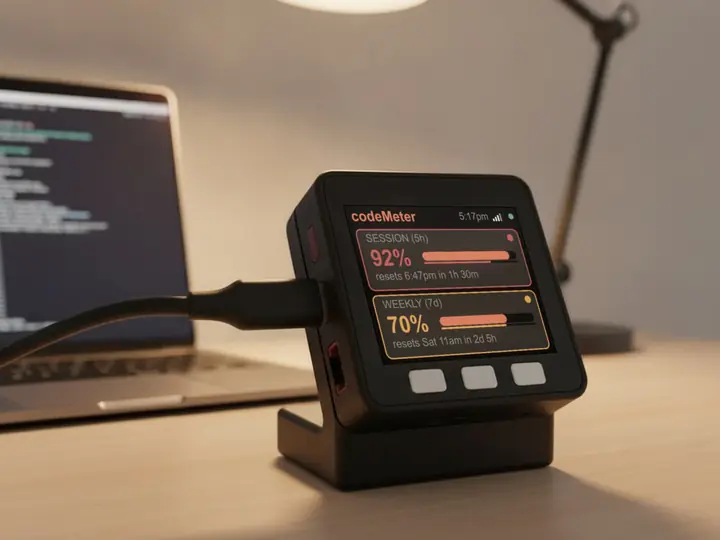
8 stand colours. Pick one to start your build.
FAQ
Questions.
Do I need the Claude CLI?
Yes, once per Claude account, to run claude setup-token. It is a free download from Anthropic. After that the device runs on its own.
Is the token sent to you?
No. You paste it over the device's own local Wi-Fi, and the pairing page builds its QR in your browser. The token is stored on the device only.
The screen says Claude login expired. What now?
Hold B about 7 seconds (an orange screen appears at 5 seconds, keep holding) and paste a fresh token from claude setup-token. Your Wi-Fi and names are kept.
Which Wi-Fi does it need?
2.4 GHz with a WPA2 password. It does not join 5 GHz-only or WPA3-only networks.
myDeskMeter